How to Resolve CrowdStrike-Related BSOD Issues: A Comprehensive Guide
In this detailed guide, we address the recent CrowdStrike-related BSOD issues, providing step-by-step solutions to restore your system. Discover how Average Joe’s Hosting can assist you during this challenging time.
In the early hours of Friday, July 19th, 2024, a significant issue emerged for CrowdStrike users, causing widespread “Blue Screen of Death” (BSOD) problems. This situation rendered numerous devices inoperable, disrupting critical sectors such as international travel, healthcare, and banking. CrowdStrike’s CEO quickly clarified that the issue was “not the result of a security incident or cyberattack,” and assured that “the issue has been identified, isolated, and a fix has been deployed.” Preliminary reports indicate that an improperly formatted or faulty update caused Windows systems to fail during boot.
This blog post will provide a detailed explanation of the problem and offer a step-by-step workaround to restore functionality to affected devices. Additionally, we’ll discuss how Average Joe's Hosting can assist you during this challenging time.
Understanding the BSOD Issue
The BSOD error is typically a critical system error that forces Windows to stop working to prevent further damage. The recent CrowdStrike issue led to such errors, causing substantial inconvenience and operational disruptions.
Identified Workaround for Affected Devices
To resolve the BSOD issues, follow these steps:
Standard Devices
- Boot into Safe Mode or Windows Recovery Environment:
- Restart your computer and press F8 (or another key specific to your manufacturer) to enter Safe Mode.
- Navigate to the Problematic File:
- Open Windows Explorer and go to
C:\Windows\System32\drivers\CrowdStrike.
- Open Windows Explorer and go to
- Delete the Faulty File:
- Locate the file starting with
C-00000291*and ending with.sys. - Delete this file.
- Locate the file starting with
- Reboot Your Computer:
- Restart your system to complete the process.
Devices with BitLocker Enabled
For users with BitLocker enabled, follow these additional steps if you have your BitLocker recovery key:
- Cycle Through BSODs to Reach the Recovery Screen:
- Continuously reboot until you access the recovery screen.
- Navigate to Startup Settings:
- Select
Troubleshoot > Advanced Options > Startup Settingsand then click “Restart.”
- Select
- Skip BitLocker Prompts:
- Press “Escape” to skip the first BitLocker recovery key prompt.
- Select “Skip This Drive” at the second prompt.
- Access Command Prompt:
- Go to
Troubleshoot > Advanced Options > Command Prompt.
- Go to
- Enable Safe Mode:
- Type
bcdedit /set {default} safeboot minimaland press Enter.
- Type
- Continue to WinRE:
- Go back to the WinRE main menu and select “Continue.”
- Log In to Safe Mode:
- Your device may cycle 2-3 times before booting into Safe Mode.
- Log in as usual.
- Delete the Faulty File:
- Open Windows Explorer and navigate to
C:\Windows\System32\drivers\CrowdStrike. - Delete the file starting with
C-00000291*and ending with.sys.
- Open Windows Explorer and navigate to
- Revert Safe Mode:
- Open Command Prompt (as administrator).
- Type
bcdedit /set {default} safebootand press Enter.
- Restart Normally:
- Reboot your system to complete the process.
Alternative Solution via Group Policy Object (GPO)
For devices that have not been rebooted and still retain a network connection, the workaround can be executed via Group Policy Object (GPO) using a PowerShell script. Below is the PowerShell script provided by the GitHub user “whichbuffer”:
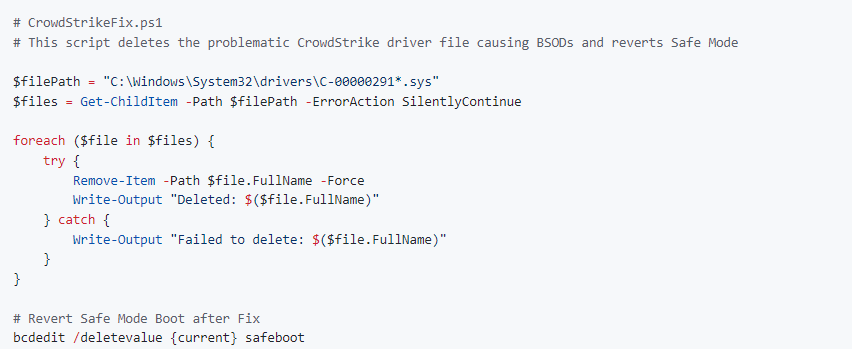
You can find the full script and additional details on the GitHub link.
Impact and Continuing Support
The manual recovery required for this issue means that operational disruptions and economic impacts may persist for several days. CrowdStrike customers are advised to stay informed by checking updates through the CrowdStrike user portal.
How Average Joe's Hosting Can Help
At Average Joe's Hosting, we understand the stress and disruption caused by such incidents. Our team is ready to assist you with any questions or support you need during this time. Here's how you can reach us:
- Email: HelpMe@AverageJoesHosting.com
- Phone: 563-500-2656 or 307-227-2476
- Support Form: Fill out our intake form for personalized assistance.
We hope this guide helps you navigate the recent CrowdStrike-related BSOD issue. Our commitment is to provide you with the best service and support. Feel free to reach out to us for any assistance or queries. Thank you for choosing Average Joe's Hosting.



 English
  Spanish